Try FolderHarbor
Try a demonstration of the FolderHarbor stack!
Web Panel
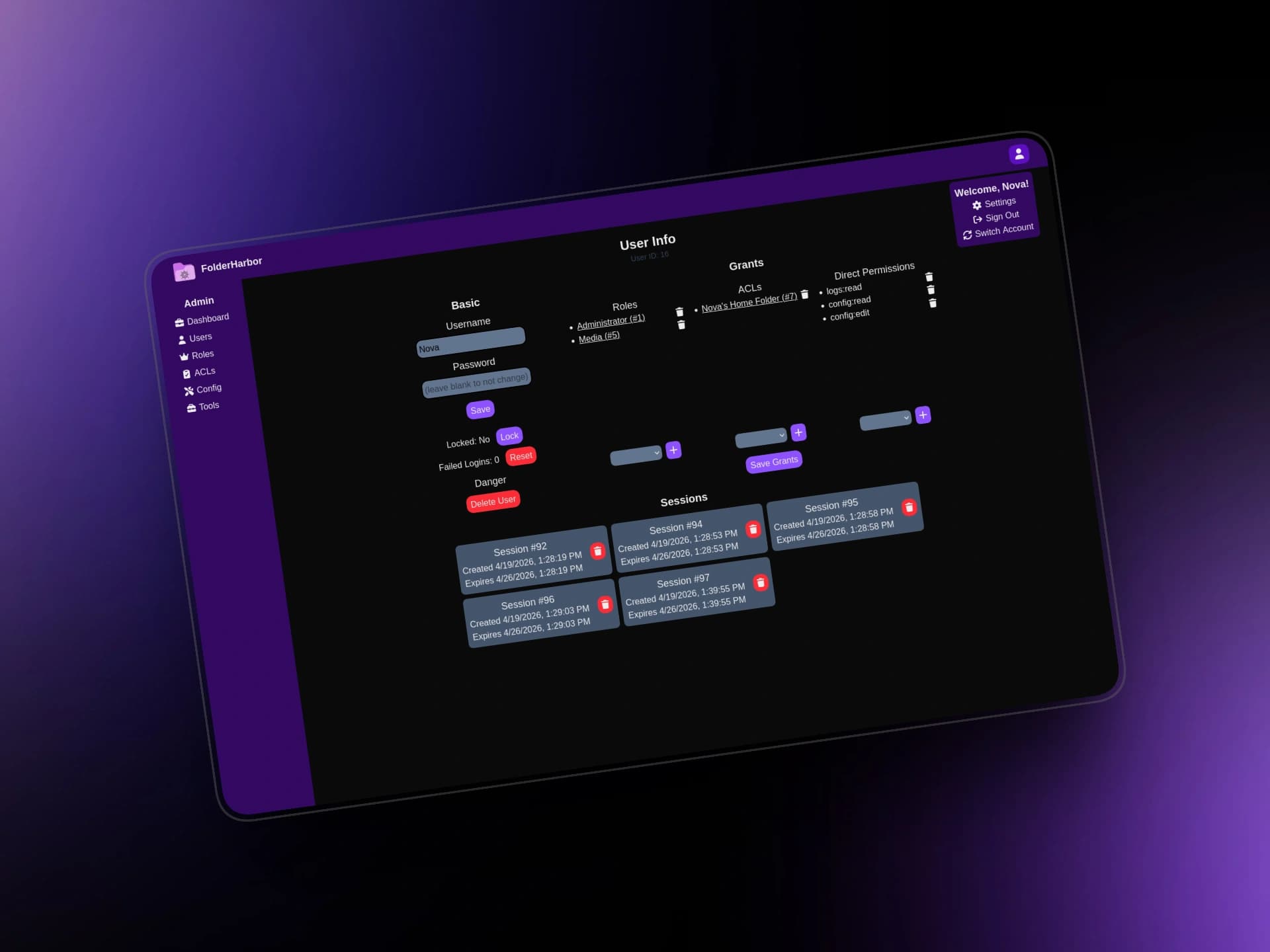
Go to the public web panel. Select the default server, "https://demo.fh.novatea.dev". Type any username of your choice, and enter a password (make sure to keep track of these). Then, click Register. You will be sent to the home page, welcome to FolderHarbor!
In this demo server, you have nearly full administrator permissions. You can click the Admin button on the top bar to use and explore the administrator dashboard. Feel free to edit your own account, but please don't mess with other people's accounts!
Web Demo
Server
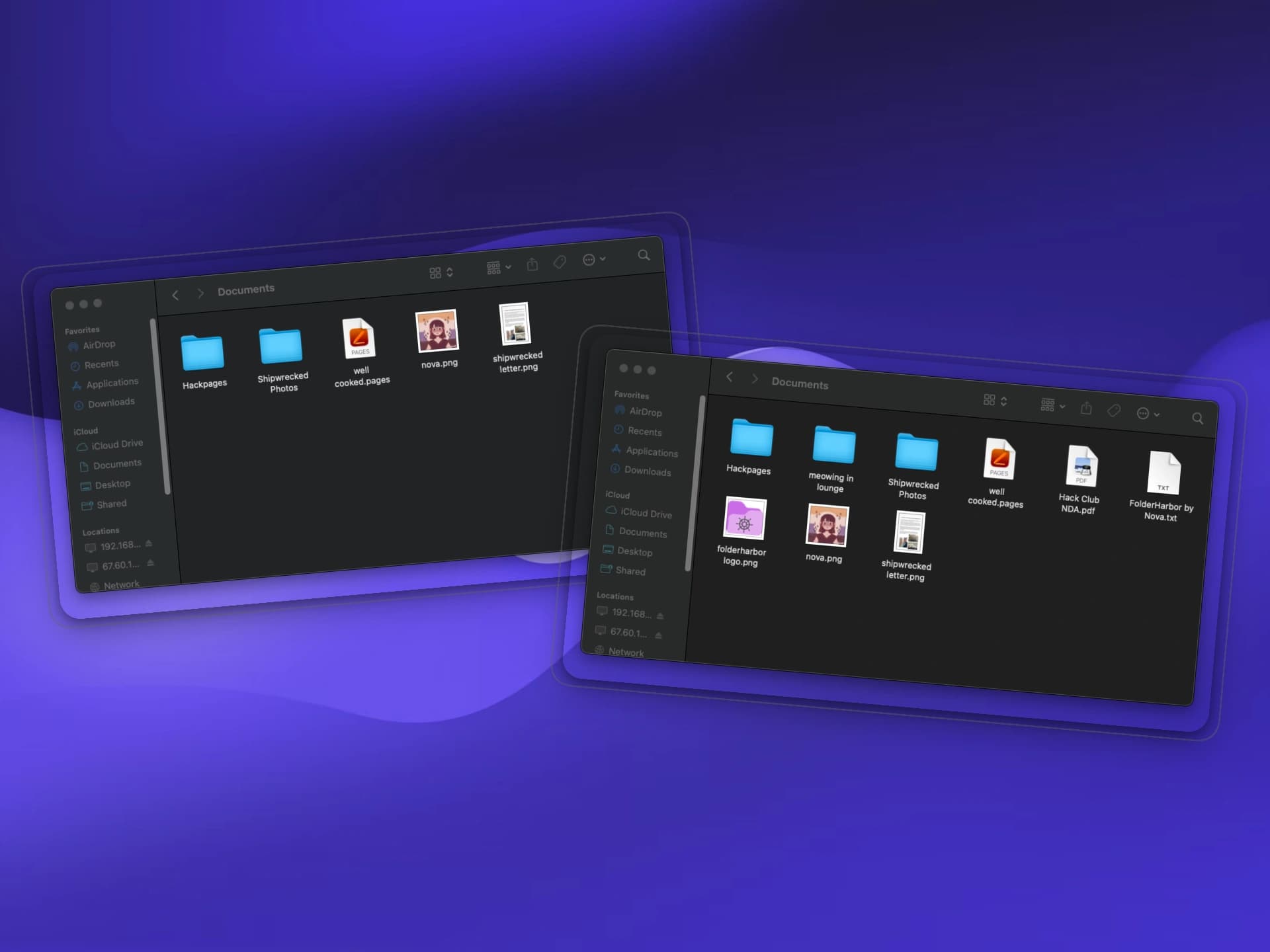
On the web panel's home page, there are instructions on how to connect with WebDAV and FTP. Pick one (or both) and follow the instructions. If you want to use token-based login, click on your token.
My recommendations on how to connect are below:
- macOS: Open Finder and click Go in the toolbar. Then, select "Connect to Server..." and enter the WebDAV/FTP server address from the web panel. Enter your username and password, or put the token from the web panel into the password box (making sure it starts with "
token_"). NOTE: FTP is read-only in Finder, this is a macOS limitation. Use WebDAV instead for write access! - Linux: Open your file manager (GNOME Files, Dolphin, and Nemo all support this, and likely others). Go to the Network tab and enter the WebDAV/FTP server address from the web panel. Enter your username and password, or put the token from the web panel into the password box (make sure it starts with "
token_"). - Windows: Open the File Explorer. Go to "This PC" and click on the 3 dots -> "Add a network location". Click Next twice, then enter the WebDAV/FTP server address from the web panel into the box. Click Next, then un-check "Log on anonymously" and enter your username. Click Next twice more, then Finish. Finally, enter your password (or put the token from the web panel into the password box, making sure it starts with "
token_"). NOTE: You may have better performance and luck with FTP than WebDAV on Windows, though both should work.
From here, feel free to explore the files on the server a bit! If you want, you can also give your user account the "Everything" (ID #1) ACL, which will give you a few extra files :3
Server Demo
CLI
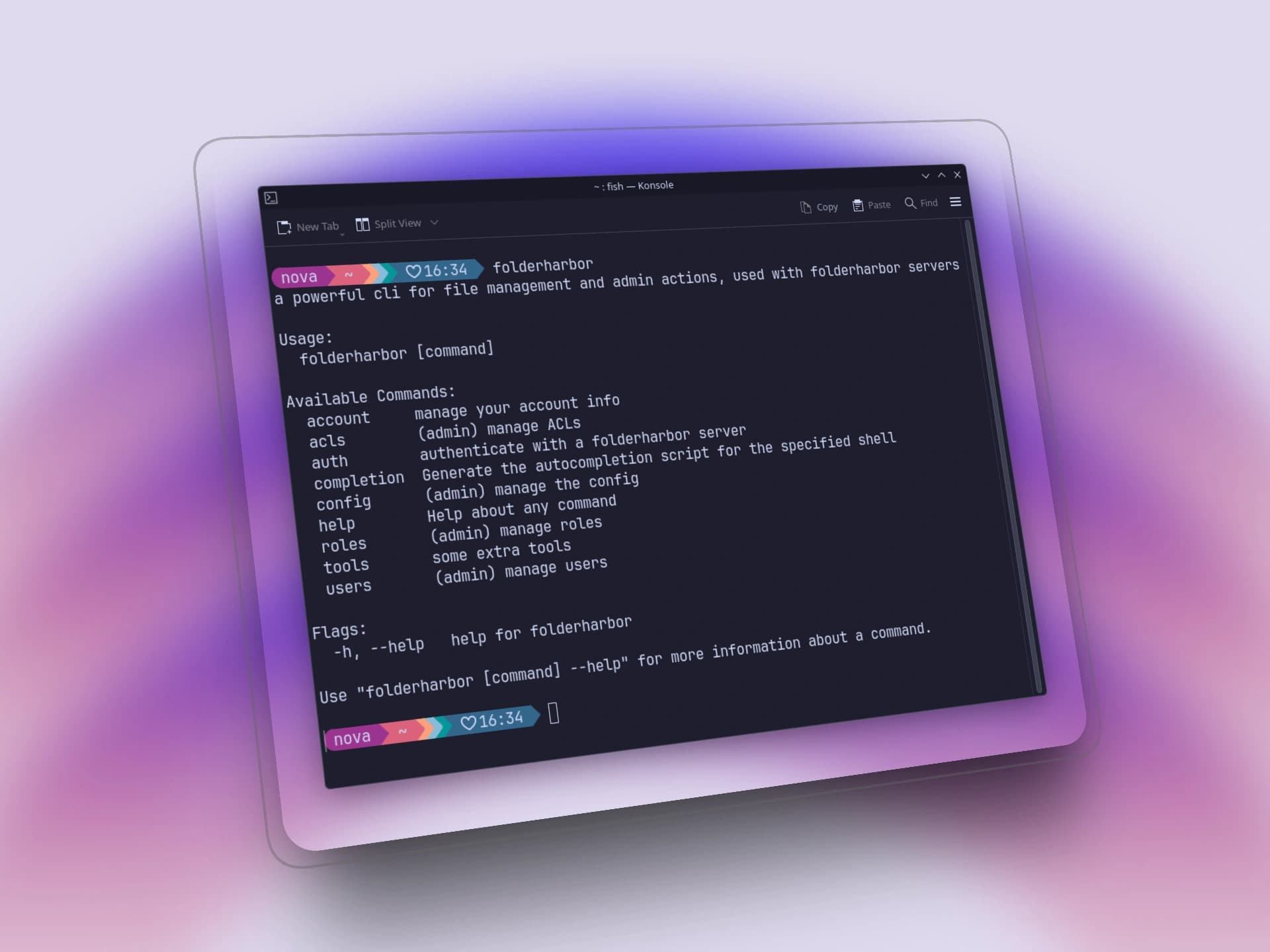
FolderHarbor has a powerful CLI! You can download it from this page.
Once you have downloaded and installed it, run the folderharbor auth login command in your terminal. This will ask for a server address, enter "https://demo.fh.novatea.dev". From there, enter your username and password from when you registered.
Once authenticated, run folderharbor --help. You can then test any of the functions it lists by following the instructions for the command! I suggest starting with folderharbor account get.
CLI Demo
Done!
Thanks for trying out FolderHarbor! This project has taken over 3 months to complete, with over 115 hours of coding time. I'm truly grateful that you've taken the time to look at what I made. ~Nova
If you want to run your own FolderHarbor server, check out the page for FolderHarbor Server for self-hosting instructions! You can also self-host the FolderHarbor web panel if you would rather not use my hosted one.
Troubleshooting
Anything going wrong? Hopefully you won't have any issues, but here's some helpful things that could solve any possible problems:
- Transfers are slow: Check your Internet connection! You may also want to try with FTP instead of WebDAV, as it is better for transfer speeds (especially for bigger files).
- Can't login to WebDAV/FTP: Make sure your username and password are the same as the ones used on the web panel when you registered! You can also use token-based login by copying your token from the web home page.
- CLI installation failing: If you have any reason why you can't get the CLI installed, try just running it in place. Open a terminal in your Downloads folder and type
./folderharbor-cli-[version]-[os]-[arch] --help(add.exeto the end if on Windows). If that works, please just use that instead! - WebDAV opening in the browser: Change the `https://` URL start to `webdavs://` or `davs://`. I've mainly noticed this change needed in Dolphin (in Linux distros using KDE).
You can also watch the demo videos to see the intended behavior, if you would like!